Open DjVu files on iPhone
To read a downloaded DjVu file on iPhone, save it to Files and open it in Niraqua DjVu. The app requires iOS 26 or later. One App Store purchase includes iPhone, iPad, and Mac; Apple shows the current price for your storefront.


Find and open the download
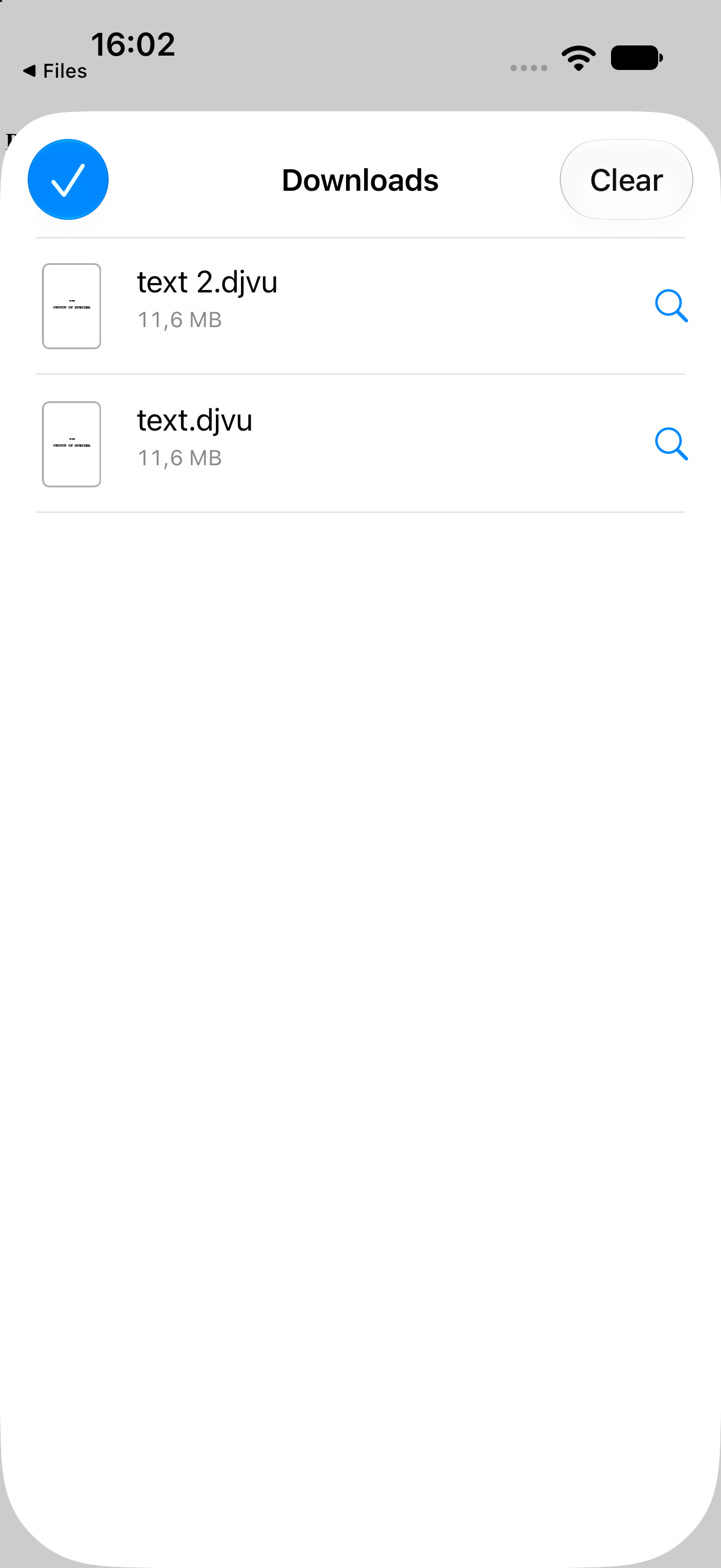
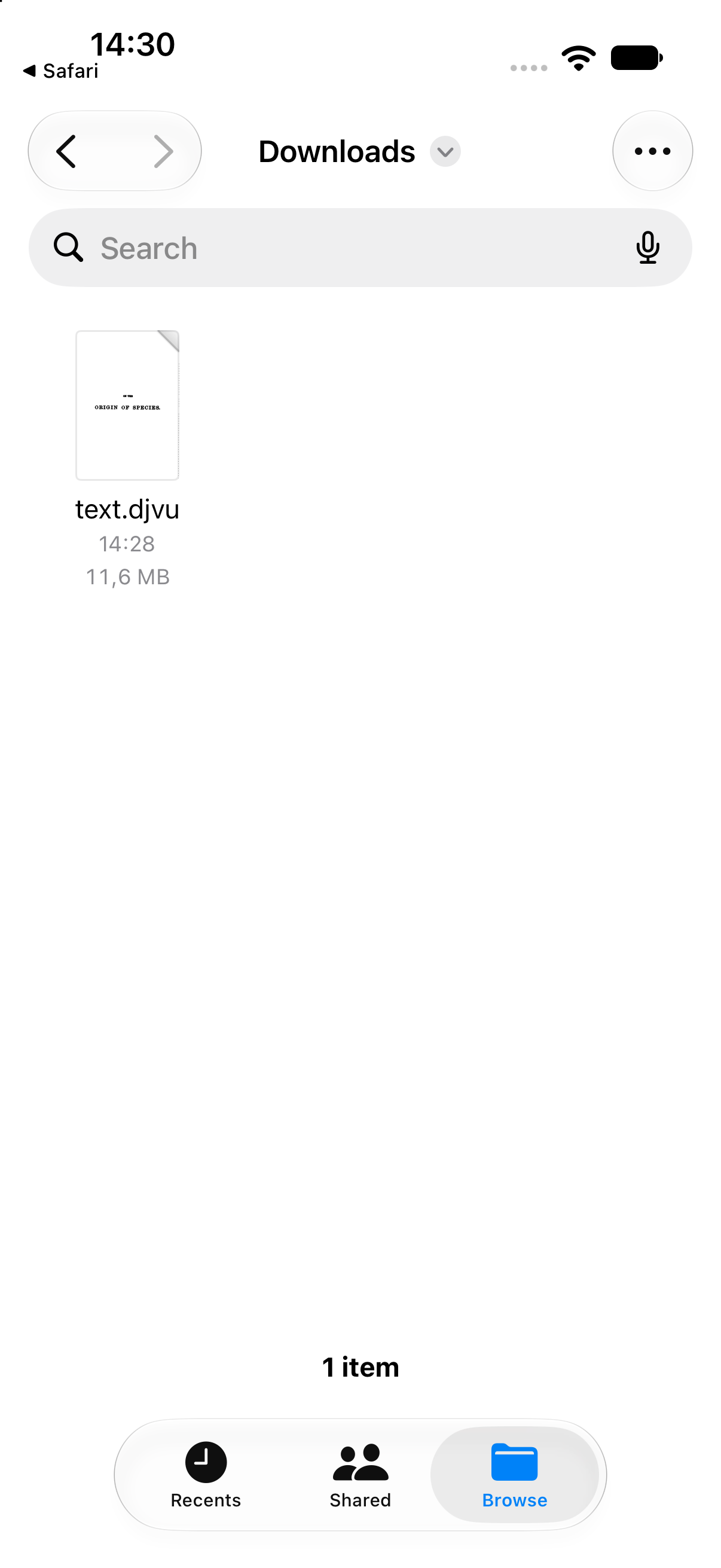
Section titled “Find and open the download”- Download the DjVu file in Safari. Open Safari’s downloads list, or open the Files app and find your Downloads folder. Its location depends on your download settings.
- If the file is in iCloud Drive or another provider, let it finish downloading before opening it.
- Open Niraqua DjVu, browse to the file in its document browser, and tap it. You can also open it from Files when Niraqua handles that file type. If another app opens instead, use Niraqua’s own browser.
Read or search a scan
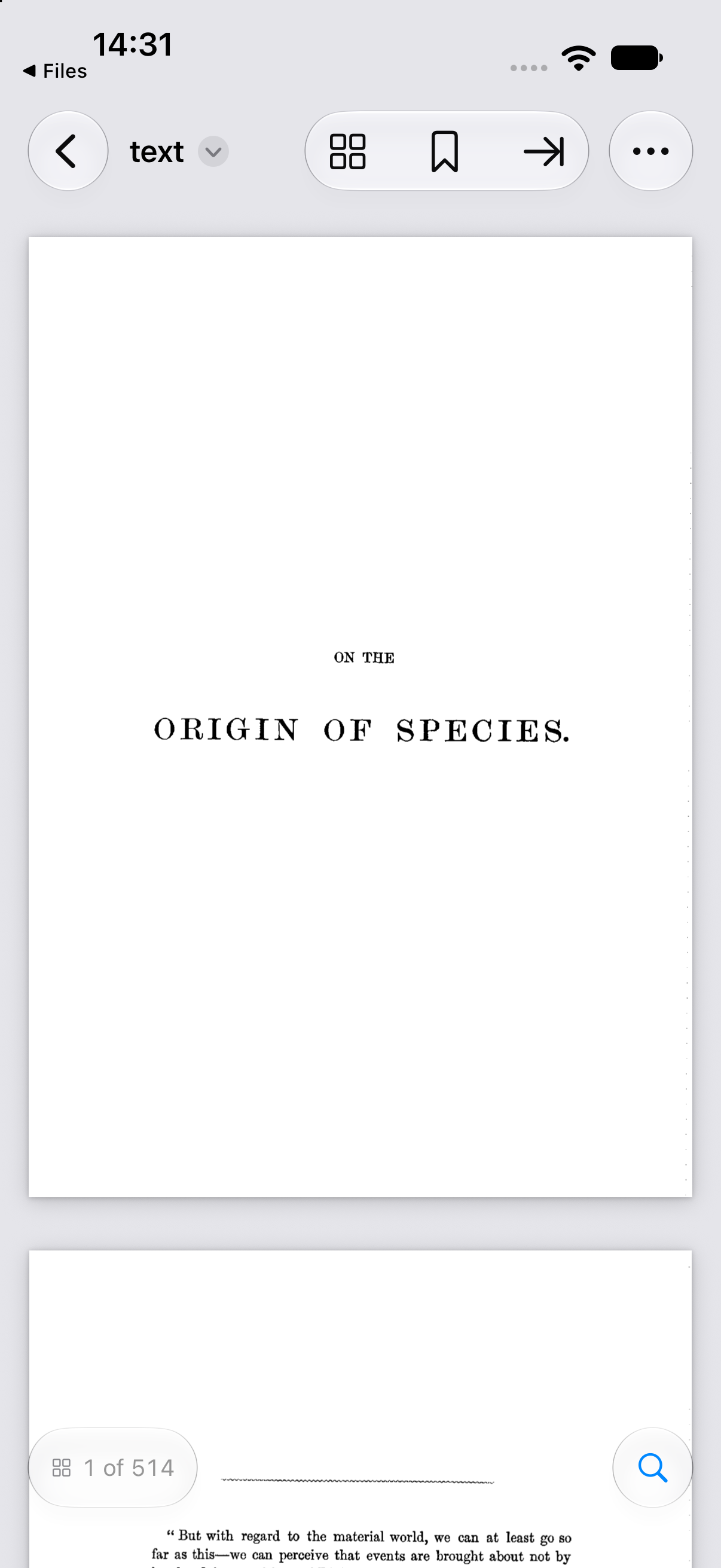
Section titled “Read or search a scan”Pinch to zoom. Use the page indicator or Pages in the … menu to navigate. Tap the magnifying glass to search. If the scan has no usable text, choose Text Recognition from …, select the language, and start. Recognition can make mistakes; compare copied quotations with the page image. See search and OCR.
Share a PDF copy
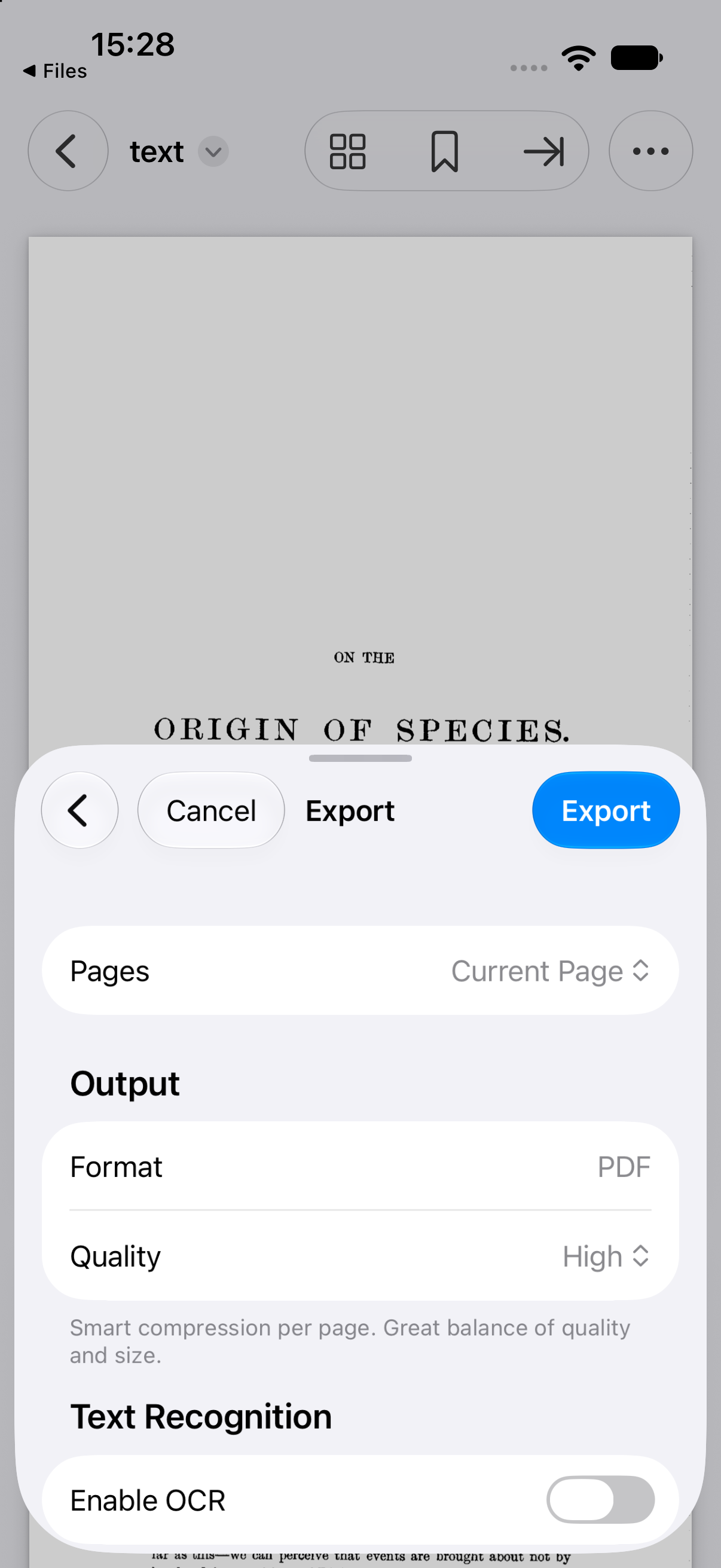
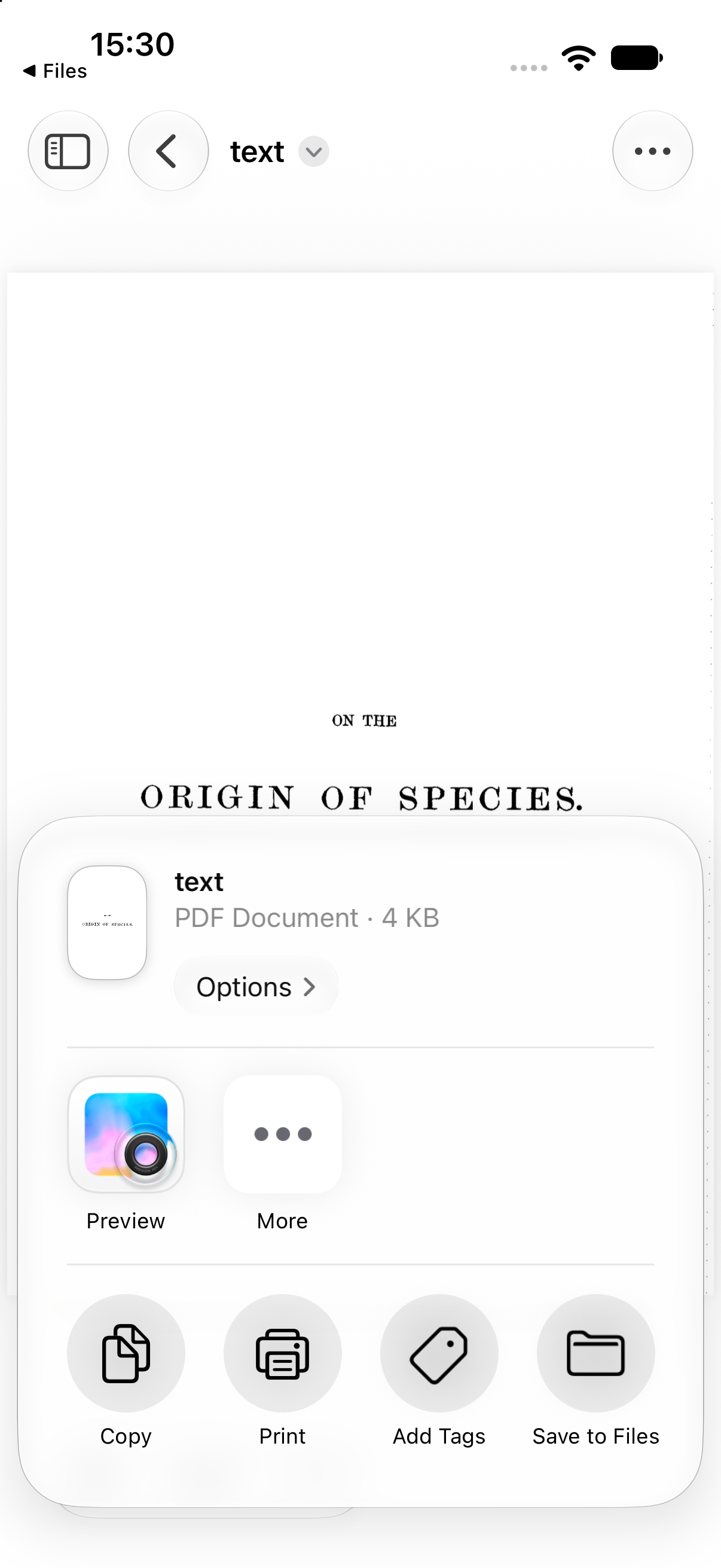
Section titled “Share a PDF copy”Choose Export as PDF from …. Select the pages, a quality preset, and OCR if needed. Save the PDF, then share that PDF from Files. Share Original sends the DjVu document instead. See PDF export and Saving and exporting for quality and size.
If the file will not open
Section titled “If the file will not open”Check that the download has finished and that the file is a DjVu document rather than a saved web page or ZIP archive. Renaming another format to .djvu does not convert it. Try downloading it again from the original source. See troubleshooting.
Apple documents where to find Safari downloads. For the app’s complete controls, see iPhone and iPad help.